


You’ve captured hundreds of high-resolution aerial images, the weather was perfect, and your flight path was flawless. But as you sit down to turn those photos into a high-precision 3D model, your computer begins to chug. The fans are screaming, the software is freezing, and you realize that “minimum requirements” were a polite understatement. What do you actually need? Find out in The Ultimate Hardware Guide for Drone Mapping.
Processing drone data is one of the most resource-intensive tasks you can ask a computer to do. If you don’t have the right hardware for drone mapping, processing a single project will take hours or even days. This bottleneck doesn’t just test your patience; it eats into your profitability and slows down your delivery to clients.
This guide breaks down the essential hardware for drone mapping so your workstation can keep up with your ambition.
The Engine: Understanding the Photogrammetry Workflow
Before getting into specific parts, it helps to understand how photogrammetry software — Pix4D, Agisoft Metashape, OpenDroneMap — actually uses your computer. If you haven’t already compared your options, the Pix4D vs. Metashape vs. WebODM vs. RealityScan breakdown covers the trade-offs between the major platforms in detail. Photogrammetry is different from gaming or standard office work. It happens in distinct stages, and each stage relies on a different piece of hardware.
- Alignment & Feature Matching: CPU and GPU. In Metashape, Align Photos is one of the two core steps that use the video card (Puget Systems). WebODM’s ODX engine also uses the GPU for feature matching.
- Dense Cloud Generation: This is where your GPU does the heavy lifting, with the CPU and RAM in support.
- Mesh & Texture Generation: A mix of CPU and RAM. Puget calls Metashape’s Build Mesh step “heavily dependent on clock speed,” though the GPU also matters when the mesh is built from depth maps.
- Orthomosaic & DEM Export: High reliance on RAM and storage speed. Some software uses the GPU here too: PIX4Dmatic’s acceleration covers orthomosaic generation.
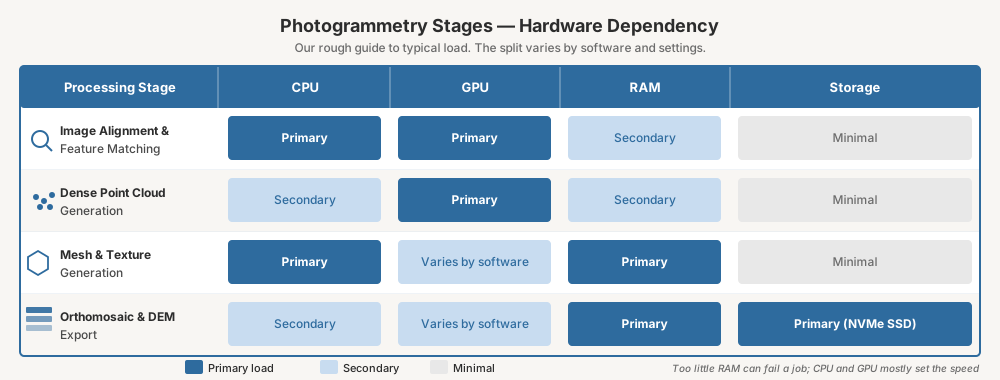
Our advice on buying order: Check your software’s requirements first, since some software needs a supported GPU to build models at all. Then size RAM to your jobs, because a job that runs out of memory can fail outright, while the CPU and GPU mostly change how fast it runs. Speed still matters: Puget calls GPUs “extremely important to performance” in Metashape.
1. The CPU: The Brain of the Operation
When it comes to CPUs, you’re balancing two things: Clock Speed (how fast a single core is) and Core Count (how many tasks it can handle at once).
More cores help, but only up to a point. Agisoft’s “Advanced” configuration runs from 6 to 32 cores at 3.0+ GHz, and Puget says that “as of Metashape 1.7.2 it seems that extremely high core count processors are not well suited” to the application. That’s an older version, so treat it as a guide. In the WebODM benchmark in our sizing guide, going from 8 to 32 vCPUs cut the time by about a fifth.
The Sweet Spot: In our view, a current 8- to 24-core desktop chip suits most solo operators. Puget currently names Intel’s 24-core Core Ultra 7 270K Plus among the fastest CPUs for Metashape.
Workstation chips: Agisoft lists AMD Threadripper as an option in its Advanced tier, and Puget says the 32-core Threadripper 9970X “offers great performance in PIX4D when working with bigger maps.” For Metashape and WebODM the evidence above is less encouraging, so test your own workload before paying for one.
2. The GPU: The Speed Boost
Modern photogrammetry software uses hardware acceleration to speed up alignment and dense reconstruction. NVIDIA cards use CUDA. Metashape also supports AMD cards through OpenCL.
NVIDIA is still the safe pick: PIX4Dmatic’s hardware acceleration works only on NVIDIA, and WebODM’s GPU mode needs a CUDA-compatible card. AMD is no longer shut out everywhere: RealityScan 2.2 added Radeon support on Windows. Metashape runs on Radeon too, though Puget does “not currently recommend AMD Radeon cards” for it. Puget’s linked comparison is an older one, from the RTX 30 and RX 6000 generation.
A recent card matters most: Puget says “pretty much any recent-generation NVIDIA GeForce RTX video card will work well in Metashape.” It’s more mixed on how far to go up the range. It reports “very little difference across models in our testing,” and also says “the higher-end (and thus faster) GeForce cards are usually most worthwhile.” Buy the top card only if your budget is already covered elsewhere.
VRAM: Our rule of thumb is at least 8 GB. Cards such as the RTX 4080 (16 GB) and RTX 4090 (24 GB) give you more room, but when comparing GeForce with RTX PRO cards, Puget wrote that “after a certain point the amount of video memory was not found to be an important factor” in Metashape.
Key Takeaway: A bigger GPU won’t rescue a job that runs out of memory, so cover your RAM before you stretch for a faster card.
3. RAM: The Workspace
Think of RAM as the size of your desk. When your desk is too small, you can only work on one piece of paper at a time. When it’s large, you can have everything spread out and ready to go.
If you don’t have enough RAM, your computer will use your drive as “virtual memory,” which is far slower. Or the job fails: in the sizing guide’s 2,500-image run, a 16 GB, 4-vCPU machine ran out of memory, and a 32 GB, 8-vCPU machine finished in 4 hours.
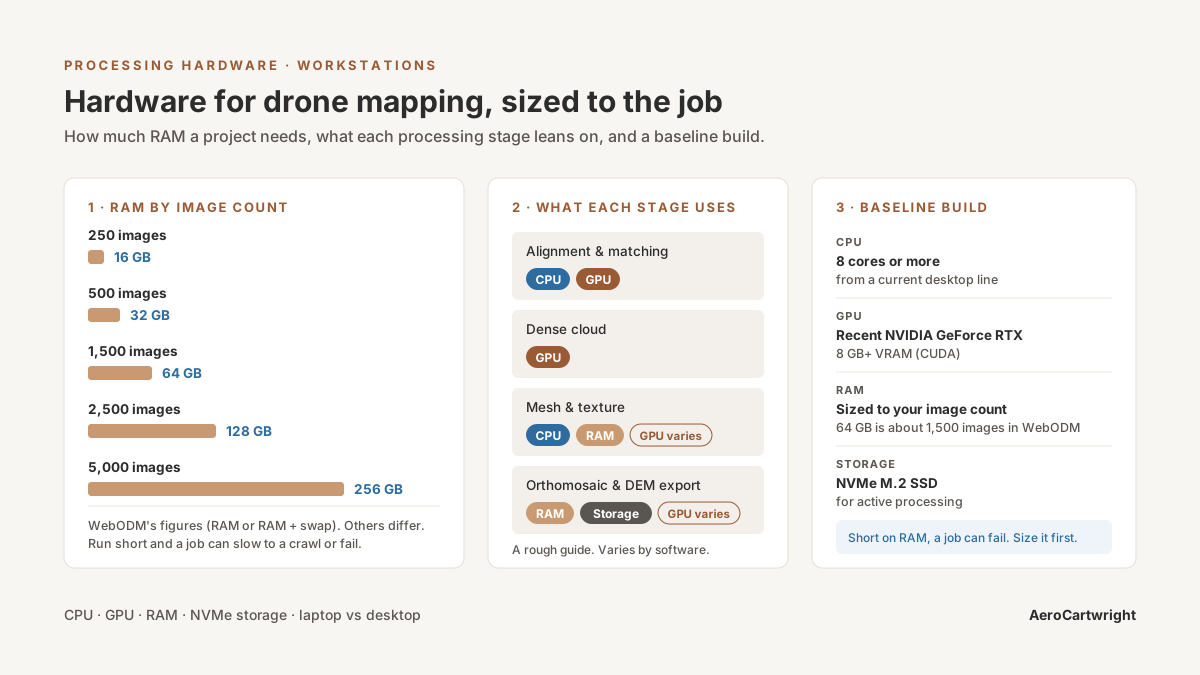
How much RAM do you actually need? WebODM publishes the clearest table:
| Images | WebODM’s figure (RAM or RAM + swap) |
|---|---|
| 250 | 16 GB |
| 500 | 32 GB |
| 1,500 | 64 GB |
| 2,500 | 128 GB |
| 3,500 | 192 GB |
| 5,000 | 256 GB |
WebODM calls these “conservative estimates” and says image dimensions, flight altitude and processing settings all change memory use. That’s why the 2,500-image run above could finish on 32 GB when the table says 128. Treat the table as the safe figure, not the least that can work.
Other software differs. Agisoft’s Advanced configuration lists 32–128 GB, and Puget says Metashape’s RAM use is “roughly linear” with megapixel count. Puget reports that a 2,600-image PIX4D project peaked at about 20 GB with default options, and warns that memory use can be much higher. Check your own software’s figures before you buy.
Pro Tip: Always check your motherboard’s maximum capacity and slot count. Buy what your jobs need now, and leave yourself a way to add more later.
4. Storage: Keep Active Projects on an SSD
You might have the fastest processor in the world. But if your active project sits on a traditional spinning hard drive, that drive becomes the bottleneck. Puget quotes PIX4D saying that “the speed of the [drive] defines the processing speed” for its Step 3, though Puget hadn’t yet tested that itself.
A simple three-drive setup works well, using Puget’s sizes as a guide:
- Drive 1 (OS & Programs): A 1 TB or larger NVMe M.2 SSD. This keeps your OS and software snappy.
- Drive 2 (Active Projects): A 2 TB or larger SSD. This is where current project files live during processing.
- Drive 3 (Archive): A large HDD or external drive array. Once a project is finished, move it here for long-term storage.
If you’re starting with one drive, make it a large NVMe SSD and add the others later.
5. Laptop vs. Desktop: The Great Debate
Can you do drone mapping on a laptop? Yes. Should you? It depends.
The Laptop Case: If you’re a field technician who needs to verify data quality on-site, a high-end laptop — a Razer Blade, ASUS ROG, or Dell Precision mobile workstation — is a great tool for generating a quick low-res orthomosaic or checking alignment quality before you pack up.
The Desktop Case: For heavy-duty processing, desktops usually win. Better cooling (which matters on long processing runs), easier upgrades, and more performance per dollar.
Summary Checklist
When you’re ready to pull the trigger on a new build, keep this checklist handy:
- RAM: Sized to your image count; WebODM’s table puts 64 GB at about 1,500 images
- GPU: A recent NVIDIA GeForce RTX card with 8 GB+ VRAM
- CPU: 8 cores or more from a current desktop line
- Storage: At least one NVMe M.2 SSD for active processing
- Cooling: Ensure your case has excellent airflow or liquid cooling to prevent thermal throttling
Final Thoughts
Investing in the right hardware is really about reclaiming your time, not chasing specs. Every hour saved on processing is an hour you can spend in the field capturing more data, finding new clients, or refining your deliverables.
The right build depends on your workflow and the scale of projects you typically tackle. Start with enough RAM and a recent NVIDIA card, then upgrade your CPU and storage as your business grows. Once your hardware is sorted, the drone mapping checklist series will help you get consistent, repeatable results out of every project.
Further Reading
Hardware Benchmarking
Official Software Requirements
Component Deep-Dives
Community
References
- Agisoft. Metashape system requirements.
- Epic Games. RealityScan 2.2 announcement.
- NVIDIA. GeForce RTX 4080 specifications.
- NVIDIA. GeForce RTX 4090 specifications.
- Pix4D. PIX4Dmatic system requirements.
- Puget Systems. Agisoft Metashape hardware recommendations.
- Puget Systems. PIX4D hardware recommendations.
- WebODM. Installation and hardware requirements.