


Updated November 2026: We expanded the RealityScan section with Epic’s Linux installation and command-line documentation, a batch script built from Epic’s documented commands, what the license covers for command-line use, and the options for running the Windows desktop app from a Linux machine. We also corrected the Docker note: Epic says RealityScan for Linux can run inside a Docker container. Updated October 2026: We clarified that WebODM has been a separate project since April 2026 and runs its own ODX engine (with NodeODX and ClusterODX) rather than OpenDroneMap’s ODM, NodeODM and ClusterODM, and we corrected the titles and links in Related Articles. We also fixed the COLMAP dense commands (patch_match_stereo and stereo_fusion), noted that COLMAP can build meshes, corrected the claim that ODM detects GCP markers automatically (tagging is manual), recalculated the Windows surcharge on AWS from current on-demand prices, corrected the Pix4D platform note, and removed unsourced speed figures, an unsourced RealityScan maturity timeline and an unverified DJI Terra COLMAP claim.
You need to process drone imagery on a Linux server. Maybe you’re running an AWS instance for batch processing — the 24-hour grind where Windows licenses eat into margins. Maybe your workstation runs Ubuntu and you want native performance. Maybe you’re building an automated pipeline that watches an S3 bucket and churns out 3D models on demand. Whatever the case: Windows photogrammetry tools don’t help. Here are the four real options — and which one fits your workflow.
Why Linux for Photogrammetry?
Before comparing tools, ask yourself why you’re looking at Linux. The answer shapes which tool wins.
Cloud processing. AWS, Google Cloud, and Azure default to Linux. A Windows instance costs more — you’re paying for the license on top of compute, storage, and transfer fees. For batch jobs processing hundreds of datasets monthly, that overhead compounds fast.
Headless batch automation. No GUI overhead. No monitor, no keyboard, no display server bottleneck. Start a photogrammetry processing job overnight and wake up with results in S3. Windows Remote Desktop works — but it burns resources compared to a command-line tool running in the background.
Docker containers. The entire photogrammetry stack — dependencies, libraries, environment variables — bakes into a single image. Spin up identical processing pipelines across 50 instances. Scale up in minutes, shut down when done. Linux containers dominate production infrastructure; Windows containers exist but require different operational thinking.
Cost savings. An on-demand t3.2xlarge in AWS’s US East (N. Virginia) region costs $0.3328/hour on Linux and $0.48/hour on Windows (AWS on-demand pricing, checked October 2026). That’s about $0.15/hour more for Windows, or roughly $147 extra over 1,000 hours of processing.
GIS toolchain integration. GDAL, PDAL, PostGIS, QGIS — the entire geospatial stack is native Linux. Pipe photogrammetry output directly into georeferencing, classification, and analysis workflows without format conversion or expensive licensing overhead.
The Four Contenders
Here’s the state of photogrammetry on Linux — production-ready tools only:
| Tool | Linux Support | Cost | Primary Strength | Orthomosaic | CLI/Headless | Best For |
|---|---|---|---|---|---|---|
| OpenDroneMap (ODM) | Native, production-ready | Free | Survey-grade mapping | Yes | Yes | Drone mapping operators |
| RealityScan 2.x | CLI-only build via bundled Wine (experimental) | Free <$1M; $1,250/seat/yr above | 3D model quality | Yes | Yes, with caveats | Asset creation, VFX |
| Meshroom | Native, stable | Free | 3D reconstruction | Limited | Yes | 3D assets without RealityScan |
| COLMAP | Native, mature | Free | Research-grade SfM | No | GUI + CLI | Accuracy validation, research |
The choice isn’t obvious. RealityScan produces the sharpest 3D models. OpenDroneMap handles everything from raw images to survey deliverables. Meshroom offers node-based control without RealityScan’s setup complexity. COLMAP is the mathematical foundation — the tool other projects build on.
OpenDroneMap: The Production Workhorse
OpenDroneMap (ODM) is the Linux photogrammetry story that actually works at scale. It’s native, battle-tested, and does everything a drone operator needs in a single pipeline.
What it does. Feed it a folder of images. OpenDroneMap outputs: orthomosaic (georeferenced composite image), point cloud (LAS format), digital surface model (GeoTIFF), 3D mesh (OBJ/PLY), and camera positions. Everything is georeferenced — no manual coordinate assignment required if your CRS is set correctly.
How to run it. Three interfaces:
- WebODM — web GUI, project management, batch processing. Best for humans. Runs on your laptop or server. Since April 2026, WebODM is a separate project: it runs ODX, its own fork of the ODM engine, through NodeODX rather than NodeODM (the split explained).
- NodeODM — REST API. Spin up processing jobs from scripts, CI/CD pipelines, custom applications.
- ODM CLI — headless command line. Direct control, minimal overhead, perfect for Docker containers.
Example headless command:
docker run -ti --rm -v /data:/datasets opendronemap/odm \
  --project-path /datasets project \
  --resize-to 2000 \
  --mesh-octree-depth 12 \
  --dsm --dtm
Run time depends on image count, image resolution, the options you choose and the instance you run it on, so time a subset of your images before you size a cloud instance.
Georeferencing and GCP handling. ODM processes Ground Control Points, RTK/PPK corrections, and radiometric calibration for multispectral sensors. Ground control goes in as a GCP text file that lists each point’s surveyed coordinates plus the pixel position where it appears in each image, and ODM folds those observations into the bundle adjustment. Tagging those pixel positions is manual work: you click the targets in the images with a tool such as the GCP interface built into WebODM or GCP Editor Pro, as the ODM GCP documentation describes.
Distributed processing. ClusterODM orchestrates parallel processing across multiple NodeODM machines (WebODM’s ODX stack uses its own fork, ClusterODX, with NodeODX nodes). Split a large survey into geographic chunks, process simultaneously, then mosaic the results. Useful for very large projects that would take too long, or need too much memory, on a single machine.
Cost reality. Free, open source. No per-image charge. No subscription. Run as many jobs as your hardware allows. The only cost is compute.
Limitations. OpenDroneMap’s 3D model quality trails RealityScan. For visual reference and approximate geometry, it’s fine. For hero assets, game models, or film-quality meshes — you’ll see the difference.
RealityScan on Linux: An Experimental CLI Build
RealityScan is the rebranded version of RealityCapture (Epic Games acquired Capturing Reality in 2021; the product was renamed in June 2025). If you searched for “RealityCapture on Linux,” this is the same software. On Linux it’s real, official, and still experimental.
What changed. RealityCapture → RealityScan 2.0 (June 2025). The Linux command-line build arrived with RealityScan 2.1. Licensing switched from per-image to per-user annual seat licensing (free for companies with under $1M annual revenue; $1,250/year per seat for companies at or above that threshold).
Is There a Native Linux Version of RealityScan?
No. Epic’s hardware and software requirements say RealityScan “runs primarily on Windows,” and that the Linux version is “recommended only for CLI-based workflows.”
What Epic ships is RealityScan for Linux (Wine) 2.1: the Windows program packaged with its own bundled copy of Wine, the compatibility layer that runs Windows software on Linux. Epic labels it experimental and describes it as “a command-line–focused build … designed for automated processing on Linux servers.” The desktop interface does launch, but Epic doesn’t recommend using it “due to graphical glitches, window focus issues, and unsupported HTML dialogs.” The supported workflow is CLI-only.
Epic’s recommended environment:
- Ubuntu 24.04 with kernel 6.14 (24.04 originally shipped with 6.8; newer kernels come through the HWE stack) or Fedora 39 with kernel 6.10 (39 shipped with 6.5), 64-bit
- NVIDIA GPU with at least 8 GB of VRAM
- 16 GB of system RAM or more
NVIDIA is mandatory on Linux. RealityScan 2.2 (June 2026) added AMD GPU support, but only on Windows. Linux AMD support is “coming later,” according to CG Channel’s 2.2 release coverage. Epic’s Linux page still describes the 2.1 build.
If you want the full desktop app on a Linux machine. You have three routes, and none of them is the Linux build:
- A Windows virtual machine with GPU passthrough. You hand the NVIDIA card to a Windows VM, for example with KVM/QEMU and VFIO, and run the normal Windows installer inside it. Epic’s requirements page doesn’t mention virtual machines, so this is unsupported territory. Test before you commit a client job to it.
- A Windows GPU cloud instance. CG Channel lists Windows 10+ and Windows Server 2016+ as supported, so a Windows GPU instance runs the standard build. You pay the Windows surcharge covered above.
- Running the Windows installer under your own Wine or Proton. We couldn’t find a documented, reproducible report of the full RealityScan GUI running this way, and Epic’s own Wine build has the GUI problems quoted above. Treat this as a hobby experiment, not a production path.
Installing RealityScan for Linux
Epic distributes .deb packages for Debian/Ubuntu and .rpm packages for Fedora/RHEL/Rocky, which you download from Epic’s RealityScan for Linux page:
# Debian / Ubuntu
sudo apt install ~/Downloads/realityscan-VERSION.deb

# Fedora / RHEL / Rocky
sudo dnf install ~/Downloads/realityscan-VERSION.rpm
The package installs its executables under /opt/realityscan/bin/ and creates a Wine prefix (the folder Wine uses as a fake Windows drive) at ~/.realityscan/realityscan/. Epic warns that editing files inside that prefix can break the installation. The launcher script /opt/realityscan/bin/run_app opens the GUI. Epic says to use it for troubleshooting only.
The RealityScan Command-Line Interface
RealityScan’s command-line interface works the same way on both platforms. Each processing step is a flag that starts with a hyphen, and RealityScan executes the flags in order, the same as clicking through the GUI. On Windows you pass them to RealityScan.exe, either typed into Command Prompt or saved in a .bat file. On Linux you pass them through the realityscan-cli wrapper, followed by the path of the Windows executable inside the Wine prefix:
realityscan-cli "<path-to-RealityScan.exe>" -command1 -command2 "arg" -command3 ...
Epic gives the executable path as /opt/realityscan/support/realityscan/drive_c/Program Files/Epic Games/RealityScan/RealityScan.exe.
Paths you pass to RealityScan are Windows paths, because the program still thinks it’s on Windows. Epic’s examples use Wine’s Z: drive, which by default maps to the Linux root directory. So Z:\data\job01\images is /data/job01/images.
The commands a basic drone or object job needs, with names as spelled in Epic’s current RealityScan docs:
| Command | What it does | Docs page |
|---|---|---|
-headless | Hides the interface (on Windows, leaves a system tray icon) | Headless mode |
-newScene | Creates a new, empty project | Project and image commands |
-load file.rsproj | Opens an existing project | Project and image commands |
-addFolder folder | Adds every image in a folder | Project and image commands |
-align | Aligns the images (computes camera positions) with current settings | Alignment commands |
-selectMaximalComponent | Selects the largest aligned component for further processing | Alignment commands |
-importGroundControlPoints file | Imports ground control points | Alignment commands |
-setReconstructionRegionAuto | Sets the reconstruction region (the box that limits meshing) automatically | Reconstruction commands |
-calculateNormalModel | Builds the mesh at Normal detail (-calculatePreviewModel and -calculateHighModel are the other levels) | Reconstruction commands |
-simplify count | Decimates the selected model to a target triangle count | Model tools |
-calculateTexture | Textures the model | Model tools |
-exportModel name file params.xml | Exports a named model; the file extension sets the format | Model tools |
-save file.rsproj | Saves the project | Project and image commands |
-execRSCMD file.rscmd | Runs a saved list of commands from a file | Project and image commands |
-quit | Closes RealityScan | Project and image commands |
RealityCapture users should note the project extension: RealityScan saves .rsproj files, and Epic’s command examples all use it.
A minimal batch script. This follows the example in Epic’s Linux installation guide (align, mesh at Normal detail, texture, save, export), with the export switched to OBJ as in Epic’s model-tools example and -quit added so the process exits when the job finishes:
#!/usr/bin/env bash
# Align, mesh, texture and export one image folder with RealityScan for Linux (Wine build).
set -euo pipefail

RS_EXE="/opt/realityscan/support/realityscan/drive_c/Program Files/Epic Games/RealityScan/RealityScan.exe"

# Z:\ is the Linux root inside Wine, so Z:\data\job01 is /data/job01
realityscan-cli "$RS_EXE" \
  -newScene \
  -addFolder 'Z:\data\job01\images' \
  -align \
  -selectMaximalComponent \
  -setReconstructionRegionAuto \
  -calculateNormalModel \
  -calculateTexture \
  -save 'Z:\data\job01\job01.rsproj' \
  -exportModel "Model 1" 'Z:\data\job01\model.obj' 'Z:\data\job01\export.xml' \
  -quit
Three things to know before you run it:
- The export settings file comes from the GUI. Epic’s Linux guide says
-exportModeltakes the model name, the output file and an export-parameter XML, and that you create the XML by saving export settings in the RealityScan interface (Windows or the Linux Wine build). Make it once on a Windows machine and reuse it. - Check the model name.
-exportModelexports a model by name, and “Model 1” is the name Epic’s Linux example uses. Open one finished project in the GUI and confirm the name your jobs produce before you automate the export. - On Windows, the same flags go straight to the executable. Epic’s documented example meshes an already-aligned project and decimates it to one million triangles; with
-headlessadded it reads:"C:\Program Files\Epic Games\RealityScan\RealityScan.exe" -headless -load C:\MyFolder\MyProject.rsproj -selectMaximalComponent -calculateNormalModel -simplify 1000000 -save C:\MyFolder\MyProject.rsproj -quit.
Headless challenges. This is where experimental gets painful. Epic’s headless-mode page says RealityScan may come out of headless mode when it needs user input, shows a pop-up or hits an error. -silent or -set "appQuitOnError=true" suppress most of those interruptions, but “certain dialogs (e.g., the login window) will still require user interaction.” Epic doesn’t document a non-interactive sign-in for the Linux build. Test the first launch on the server you’ll actually use before you build a pipeline around it.
Remote control and containers. For fleet work, Epic’s documented route is the Remote Command Plugin. It exposes RealityScan over REST and gRPC, so a script on another machine can send commands, check progress and receive completion or error notifications. It requires RealityScan 2.1 or later and ships with Python sample clients. Epic also says RealityScan for Linux “can run fully inside a Docker container with GPU passthrough.”
What the license covers for command-line use. The RealityScan license page says the free tier, for individuals and companies under $1 million USD in annual gross revenue, includes “all RealityScan features.” Above that threshold, seats cost $1,250 per seat per year. Neither the license page nor the EULA treats the CLI, headless use, servers or Linux differently from the desktop app. Seats are counted per user, not per machine: the EULA says one user can access the software “from multiple computers or workstations while still only occupying a single Seat.” The $1 million test counts your whole corporate group’s gross revenue over the last 12 months. This isn’t legal advice. Read the EULA yourself before you deploy it on a shared render farm.
Output quality. RealityScan produces the sharpest 3D meshes of the four tools compared here. Texture detail, geometry precision, even overhanging geometry — it outperforms the competition. If your end-use is game assets, VFX, or architecture visualization, the quality gap justifies the setup complexity. On Windows, where both run natively, the premium-quality call usually comes down to RealityScan vs Agisoft Metashape — that comparison breaks down their speed, mesh quality, and GCP workflow head-to-head.
Cost consideration. The old pay-per-image model (10¢–30¢/image depending on volume) is gone. For high-volume processing, annual licensing may cost less than the legacy PPI model — but you pay upfront regardless of usage.
Where that leaves Linux-first operators. COLMAP, OpenDroneMap and WebODM’s ODX engine run natively on Linux, and so does Agisoft Metashape Professional, which Agisoft ships for Linux alongside a Python module for scripting. Those tools give you a native binary, a documented scripting path and no Wine layer to debug. RealityScan on Linux gives you the best meshes in this comparison through a wrapper Epic itself calls experimental. If your deliverable is a survey product, start with ODM or Metashape (our guide to Metashape’s processing settings covers what each step does). If it’s a hero mesh and you can live with an experimental build, test the RealityScan CLI on one real dataset before you commit a pipeline to it.
Production reality. Linux RealityScan support is functional but premature for mission-critical pipelines. If ODM crashes, you retry. If RealityScan on Linux crashes, debugging takes hours because the community is small and the Wine layer complicates troubleshooting.
Meshroom (AliceVision): The Middle Ground
Meshroom is a node-based photogrammetry platform developed by AliceVision, which grew out of EU research projects (POPART and LADIO) and lists Epic Games as a Gold Sponsor. It’s native Linux, visually intuitive, and free. It sits between hobbyist and professional — useful for 3D asset creation without RealityScan’s learning curve or setup burden.
How it works. Meshroom presents photogrammetry as a node graph. Images feed into structure-from-motion, which outputs camera positions, which feeds into mesh generation. You see every step. Change parameters in any node, re-run downstream nodes, and compare results. Transparency and control — the opposite of black-box software.
GUI or headless. Qt-based interface runs on any Linux desktop. Or run headless with command-line parameters. Useful for scripting iterative workflows — adjust parameters, save the project, commit to Git.
3D quality. Good, not great. Noticeably behind RealityScan. Comparable to older Metashape builds. For simple subjects (single object, clean background), the quality is adequate. Complex scenes or fine detail show artifacts.
Limitations that matter. No native orthomosaic generation. No DSM/DTM. No GCP integration. Meshroom is a 3D reconstruction tool, not a mapping tool. If you need survey deliverables, Meshroom alone won’t get you there.
GPU support isn’t mandatory but is strongly recommended. NVIDIA is preferred; AMD is possible but unsupported. CPU-only processing on large datasets takes days.
COLMAP: Research-Grade Precision
COLMAP is the gold standard for structure-from-motion accuracy. Used as a backend by academics, computer vision researchers, and increasingly by commercial tools. On its own, it’s powerful and unforgiving.
Why it matters. COLMAP’s bundle adjustment is mathematically meticulous — every camera parameter, every 3D point, iteratively optimized until convergence. If accuracy is the goal, COLMAP is your validation tool.
How to use it. GUI and CLI — both embedded in the same executable. The GUI (colmap gui) runs on Linux via Qt, but most production workflows use the CLI. Steep learning curve either way. Example workflow:
colmap feature_extractor --database_path mydata.db --image_path images/
colmap exhaustive_matcher --database_path mydata.db
colmap mapper --database_path mydata.db --image_path images/ --output_path sparse/
colmap image_undistorter --image_path images/ --input_path sparse/0 --output_path dense/
colmap patch_match_stereo --workspace_path dense/
colmap stereo_fusion --workspace_path dense/ --output_path dense/fused.ply
colmap poisson_mesher --input_path dense/fused.ply --output_path dense/meshed-poisson.ply
Each step is a separate command. You need to understand what each produces and the order matters.
Community integration. RealityScan 2.1.1 updated its COLMAP import and export, according to Epic’s release notes. If you’re building a custom pipeline, COLMAP’s formats are the connective tissue.
Output limitations. COLMAP produces sparse and dense point clouds, and its poisson_mesher and delaunay_mesher commands build untextured meshes from the dense reconstruction. No orthomosaic. No DSM. No texturing. It’s one component in a larger system.
When to use. Researchers validating reconstruction accuracy. Teams feeding point clouds into downstream tools (Meshroom, MVS-Texturing, custom pipelines). Academic applications where “this is what COLMAP produces” is the acceptance criterion.
Head-to-Head: Quality, Speed, and Workflow
The practical comparison when you actually need to deliver something:
3D model quality ranking:
- RealityScan (sharp geometry, excellent textures)
- COLMAP ≈ Meshroom (comparable, COLMAP slightly more precise)
- OpenDroneMap (serviceable, visible 3D artifacts at close inspection)
Speed: We haven’t timed all four tools on the same dataset, so we don’t give run times here. Processing time depends on image count, resolution, quality settings and hardware. On Linux, RealityScan requires an NVIDIA GPU. COLMAP’s dense reconstruction step needs a GPU: CUDA, or an AMD card if you build COLMAP 4.2 with HIP (the rest can run on CPU). ODM runs the full pipeline on CPU and uses a CUDA GPU, if it finds one, to speed up feature extraction and dense reconstruction.
Ease of initial setup:
- OpenDroneMap (Docker one-liner; or install WebODM for a GUI, which runs its own engine, ODX)
- Meshroom (download, run, go)
- COLMAP (compile from source or package manager, read papers to understand)
- RealityScan (Wine dependencies, CUDA setup, licensing authentication)
Headless reliability (zero manual intervention expected):
- OpenDroneMap (bulletproof)
- COLMAP (stable, requires precise CLI flags)
- Meshroom (mostly stable; occasional graph issues)
- RealityScan (authentication and dialog boxes can block processing)
Production readiness:
- OpenDroneMap: Ready now. 10+ years of field testing.
- Meshroom: Ready now. Stable, no surprises.
- COLMAP: Ready now. Use as a validation layer or research tool, not customer-facing alone.
- RealityScan: Usable, but the Linux CLI is still experimental. Don’t build mission-critical pipelines on it yet.
Docker Deployments
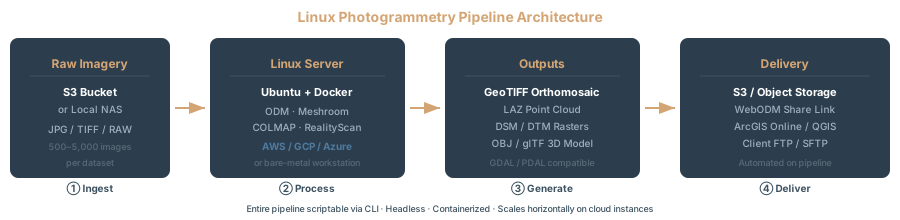
If you’re running Linux, Docker is the right packaging model for headless photogrammetry processing.
OpenDroneMap:
docker run -ti --rm \
  -v /path/to/data:/datasets \
  opendronemap/odm \
  --project-path /datasets survey_2026_04
Official image. Updated frequently. Production-grade.
Meshroom:
Official Docker images exist (alicevision/meshroom), maintained by the AliceVision team. Latest tag: 2025.1.0-av3.3.0-ubuntu22.04-cuda12.1.1.
COLMAP:
Community images available. Build your own for consistency.
RealityScan:
Epic says RealityScan for Linux “can run fully inside a Docker container with GPU passthrough,” with the REST or gRPC server enabled so you can send commands and poll status from outside the container, or with passive notifications that report progress, completion and errors while an existing .rscmd command file runs (RealityScan for Linux). You build that image yourself around the .deb or .rpm package, and the bundled Wine prefix comes along with it.
Which Tool for Which Job?
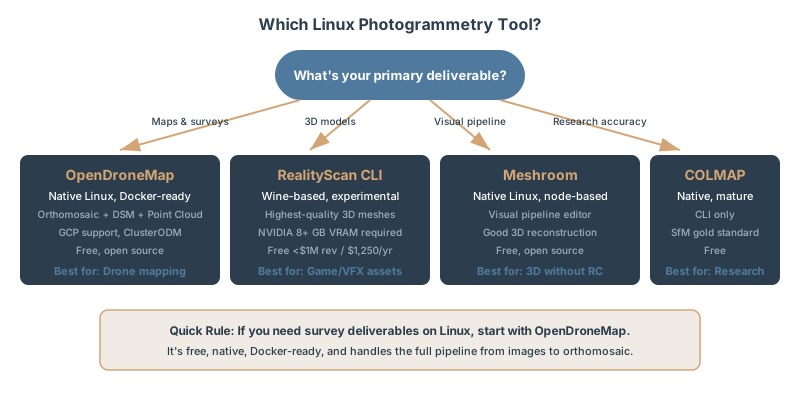
You need survey deliverables. Use OpenDroneMap. Every time. ODM handles the full pipeline and folds GCP and RTK data into the reconstruction. It’s battle-tested with surveyors and GIS professionals.
You’re creating game or VFX assets. Use RealityScan (if Linux stability is acceptable) or Meshroom (if you want simpler setup). RealityScan’s output quality justifies the setup complexity. Meshroom is the fallback if you want to skip Wine entirely.
You’re validating reconstruction accuracy. Use COLMAP. Benchmark other tools against it. Mesh the dense cloud with COLMAP’s own meshers, or hand it to another tool for texturing. COLMAP is your scientific instrument.
You’re 3D modeling without mapping deliverables. Use Meshroom. Node-based control, good quality, no licensing headaches, native Linux.
You’re processing hundreds of datasets monthly on AWS. Use OpenDroneMap with ClusterODM, or WebODM’s ODX stack with ClusterODX if you want the web interface on top. Cost-effective, scales linearly, runs 24/7 without licensing friction.
You need something simple, free, and proven. Use OpenDroneMap. It does so much that the other tools become special-purpose tools for specific cases.
FAQ
Can I run RealityScan headless on Linux?
Yes, with caveats. The Linux build is designed for command-line use: you pass processing flags through the realityscan-cli wrapper, or drive it over REST or gRPC with the Remote Command Plugin. Epic’s headless-mode docs warn that some dialogs, the login window among them, still need user interaction, so test the first launch on your actual server before you automate it.
Is there a native Linux version of RealityScan or RealityCapture?
No. Epic ships RealityScan for Linux as the Windows program wrapped in a bundled copy of Wine, labels it experimental, and supports it for CLI workflows only. The desktop interface launches but has graphical glitches. For the full GUI, use a Windows machine, a Windows VM with GPU passthrough, or a Windows GPU cloud instance.
Is the RealityScan command line free?
Yes, under the same terms as the app. The free tier for individuals and companies under $1 million USD in annual gross revenue includes all RealityScan features, and the license doesn’t carve out the CLI. Above that threshold, a seat is $1,250 per year.
Which tool makes the best orthomosaics?
OpenDroneMap. Built specifically for mapping — radiometric calibration, GCP handling, multi-band sensor support. RealityScan can generate orthophotos, but that’s secondary to its 3D modeling focus. Meshroom can’t generate orthomosaics natively. COLMAP doesn’t either.
Do I need an NVIDIA GPU?
RealityScan: mandatory for meshing and texturing. Without a supported GPU it can still align images, but it can’t build models or textures. On Linux the GPU must be NVIDIA; AMD support (added in 2.2) is Windows-only for now. Meshroom: strongly recommended. CPU processing is viable but slow. OpenDroneMap: helpful but not required. CPU-only datasets process successfully, just slowly. COLMAP: helpful but not required. CPU-only reconstruction is standard in research.
Can I process ground control points on Linux?
OpenDroneMap: full support. A GCP text file with each point’s coordinates and its pixel position in each image, then bundle adjustment with control constraints. The pixel positions are tagged by hand, for example with WebODM’s GCP interface or GCP Editor Pro; there’s no automatic marker detection. RealityScan: full support via CLI parameters. Meshroom photogrammetry: limited. You can’t import GCP lists directly; manual marking required in the sparse cloud. COLMAP: no native GCP workflow. Manual workaround (export camera positions, transform coordinates, re-import).
What about Pix4D on Linux?
Neither of Pix4D’s desktop products runs on Linux. PIX4Dmapper runs on Windows, and PIX4Dmatic runs on Windows and on macOS with Apple silicon, according to Pix4D’s hardware requirements. If you’re committed to Linux, use OpenDroneMap, Metashape, or the RealityScan CLI instead.
How do I choose between OpenDroneMap and RealityScan?
Three questions: (1) Do you need survey deliverables or 3D assets? ODM for surveys, RealityScan for assets. (2) Is Linux stability mission-critical? OpenDroneMap is mature; RealityScan is experimental. (3) Is cost a constraint? Both are free (ODM always; RealityScan under $1M revenue), but ODM scales cheaper on the cloud.
For drone mapping on Linux, OpenDroneMap is the clear choice — native, stable, full pipeline from images to survey deliverables. If your end-use is 3D assets, RealityScan on Linux is powerful but experimental. Meshroom fills the niche where you want node-based control without RealityScan’s complexity. COLMAP is the researcher’s tool.
Pick based on your deliverable, not the brand name. The right tool delivers value; the wrong one becomes a time sink.
Related Articles
- Agisoft Metashape vs Pix4D vs WebODM vs RealityScan (2026)
- Installing and Running WebODM Locally: The Complete Setup Guide
- Why Move WebODM to the Cloud? (And When Not To)
- Set Up WebODM on AWS Spot Instances for Cheap Processing
- Auto-Scaling WebODM Cluster: Process Drone Data on Upload
- What Is an Orthomosaic? A Practitioner’s Guide
- 3D Gaussian Splatting for Drone Operators, Explained
- GSD Calculator: Flight Altitude and Image Resolution